

Quick answer
HubSpot workflow automation runs steps when specified events or conditions occur, using enrollment triggers to bring CRM records into a workflow and actions to determine what happens next. HubSpot workflow automation examples include routing demo leads, creating follow-up tasks, and alerting reps when active deals go more than days without contact.
Key numbers
- HubSpot supports filter-based, event-based, scheduled, and webhook-based enrollment triggers.
- A demo-form lead-routing workflow can assign an owner, create a follow-up task, and remind a rep if they haven’t acted.
- Workflow actions available to an account depend on its subscription, and locked actions may require an upgrade.
- By default, records enroll only the first time they meet a workflow’s enrollment triggers.
The short version
- Start by selecting two or three repeatable manual processes that slow your team down.
- Map sales stages and methodology to HubSpot property names before setting triggers.
- Test triggers, timing, and results before activation, then monitor early enrollments.
- Check subscription-specific action access and confirm any plan claims in your own account.
What is HubSpot workflow automation, and how do enrollment triggers and actions work?
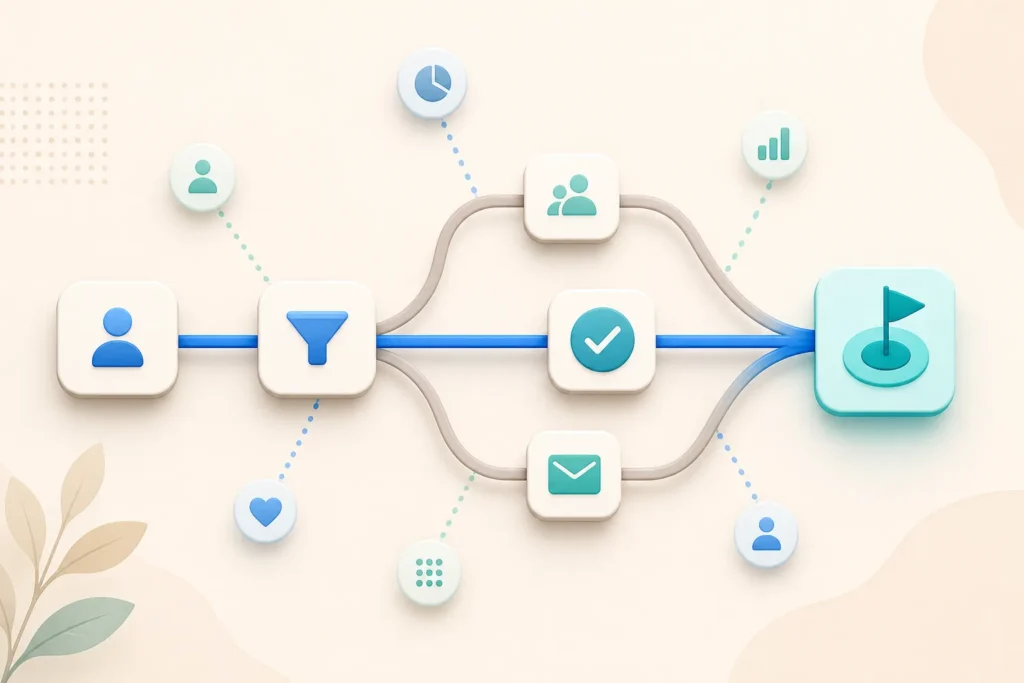
HubSpot workflow automation runs a series of steps when specified events or conditions occur, so you don’t have to perform each step manually. In these HubSpot workflows, the basic pattern is a trigger that enrolls a CRM record, followed by actions that determine what happens next.
Enrollment triggers are the criteria that allow a record to enter a workflow; actions can send an email or create a task. HubSpot supports filter-based, event-based, scheduled, and webhook-based triggers.
A contact, deal, or other CRM record can be the starting point. Once enrolled, a contact might prompt a sales notification, a status update, or another automation. That’s the operating model behind HubSpot workflow examples for small sales teams: define entry conditions, then specify the next steps. Understanding that sequence makes these sales workflows easier to adapt to your own process.

Browse top-rated CRM automation freelancers
Which HubSpot Workflow Automation Examples for Small Sales Teams can assign leads, follow up faster, and keep deals moving?
A practical starting point is a demo-request workflow: enroll a contact after a demo-form submission, assign an owner using territory or product interest, and create a follow-up task. That’s one of the most direct HubSpot workflow automation examples because the form, owner, and next action are explicit.
For reps covering the same segment, use lead rotation to distribute ownership one rep at a time, then notify the assigned representative. For high-intent inbound leads, branch on lead score and create an immediate task for the assigned AE when the score is high.
To keep deals visible, alert the rep and create a task when an active deal has gone more than days without contact. A form follow-up can send an email, wait a set time, then send another. These HubSpot workflows give you clear triggers and actions to adapt; together, they’re useful workflow examples for common handoffs.

How should a small sales team choose workflows based on its sales process, team size, and CRM data?
Choose a first workflow by identifying two or three repeatable manual processes that slow your team down. For HubSpot workflow automation examples, that means starting with an operational bottleneck rather than automating every possible step at once.
Before setting triggers, map your deal stages and sales methodology to the specific HubSpot property names your team uses. Then match the workflow’s record type to its goal: contact workflows can support follow-up and lifecycle changes, while deal workflows can support stage movement and pipeline tracking.
Routing and scoring are only as useful as the CRM data behind them. Relevant inputs can include location, job title, repeated website visits, eBook downloads, and form activity. If your process depends on intricate approvals, tiered stages, or custom datasets, check that HubSpot can model those needs before adopting the workflow. Use these HubSpot workflow automation examples to connect sales rules to actual fields, not assumptions; that’s the practical test for these HubSpot workflows.
Which HubSpot plans include workflow automation, and what limits or costs should a small team check?
Plan access isn’t described consistently across the supplied sources, so check the capabilities in your own account before designing HubSpot workflow examples for small sales teams. The comparison table below separates reported basic automation from Workflow-builder access; it also shows why Starter availability needs verification.
One source says some free tools provide limited basic automation, while another says Free has no automated sales or email marketing sequences. Starter is also described both as allowing some or light automation and as lacking the Workflow builder. The sources report Sales Hub Professional and Marketing Hub Professional workflow access, but actions available to an account depend on its subscription, and locked actions may require an upgrade.
A 2025-01 listing gives Sales Hub Professional at $100 per seat per month with a yearly commitment and a one-time $1,500 onboarding fee. Another source lists it starting at $80 NZD per seat, without a supplied source date or billing term. Marketing Hub Professional is listed at $890 per month for 2,000 marketing contacts and seats, with a yearly commitment and $3,000 onboarding fee; these are source-specific, not universal current quotes. The ledger doesn’t establish workflow access for Service Hub, Data Hub, Smart CRM, Revenue Hub, tickets, or every current subscription configuration. Confirm that before relying on these HubSpot workflows; the table is a guide to reported claims, not a current account check.

How do you build, test, and launch a HubSpot workflow using enrollment triggers, actions, and re-enrollment settings?
Build a HubSpot workflow by choosing a record type and trigger, adding actions and any delays or branches, testing it, and then activating it. For these sales workflows, test the whole path before allowing records to move through it.
- Choose the object and enrollment criteria, then add the actions, delays, or branches the process needs.
- Use HubSpot’s built-in testing tools to check triggers, timing, and results before launch.
- When activating, decide whether existing records that already meet the criteria should enroll.
- Monitor early enrollments after turning the workflow on.
By default, a record enrolls only the first time it meets the trigger criteria, and it can’t re-enroll in the same workflow until it has completed it. Users need workflow Edit or Super Admin permissions to create a workflow and Publish permissions to launch it. Treat that default as a safeguard when reviewing HubSpot workflow automation examples; decide deliberately whether a later enrollment is needed.
See CRM automation prices and reviews
What problems can workflows cause, and how can a team prevent duplicate outreach or missed leads?
A workflow can fail to act when a trigger field is blank, so check that required CRM data is present before relying on these HubSpot workflows. Missing information can leave a lead outside the intended path.
Before activation, coordinate with the teams that own related automations so workflows don’t duplicate or counteract one another. Define lead-exclusion rules for invalid data, unsupported markets, and personal or competitor email domains. For enrollment control, remember that records enter only the first time by default and can’t re-enroll until they complete the same workflow.
Complex logic can also hit branching limits: one HubSpot community user reported splitting a nurture process into three connected workflows after it exceeded branching-logic limits. That’s a reported example, not a universal limit. Keep HubSpot workflow examples for small sales teams focused on clear paths, and split complicated logic when necessary; these workflow examples should be reviewed when your CRM fields or sales process change.
Watch: a quick walkthrough
Which sales workflow should a small team implement first, and what metrics can show whether it is working?
Start with one repeatable bottleneck, such as lead assignment or creating the first follow-up task, rather than trying to automate the whole sales process. That makes these sales workflows a practical starting point for CRM workflow automation, not a promise of a specific result.
Monitor workflow enrollments, completions, errors, and bottlenecks in HubSpot’s performance and health views. You can also review deal, contact, and pipeline-stage reporting to see how records move through the process. Those are operational checks; they don’t prove that a workflow caused a particular outcome.
The supplied evidence gives no verified benchmark for response-time improvement, conversion-rate lift, rep hours saved, freelancer pricing, or implementation timeframes. It also doesn’t support a promised performance gain. Use HubSpot workflow automation examples to identify a process, test it, and monitor its actual activity. A useful next step is to compare enrollments, completions, and errors as your team revisits these HubSpot workflows and adjusts the workflow to its current process.

| Plan | Stated workflow or automation access |
|---|---|
| HubSpot Free plan | The source says HubSpot’s Free plan has no automated sales or email marketing… |
| HubSpot Starter tiers | The source says Starter tiers allow some automations. |
| Sales Hub Starter | Sales Hub Starter includes sales conversation routing, repeating tasks, and task… |
| Sales Hub Professional | Sales Hub Professional unlocks email sequences and the Workflows feature. |
| Marketing Hub Professional | Marketing Hub Professional unlocks HubSpot’s marketing automation workflows. |
| Plan or tier | Workflow or automation access reported | Caveat |
|---|---|---|
| HubSpot Free | One source says free tools offer basic, limited automations; another says Free has no automated sales or email marketing sequences. | The sources describe different automation scope. |
| HubSpot Starter | Sources report some or light automation, but also say Starter lacks the Workflow builder. | Starter availability is described inconsistently. |
| Sales Hub Professional | Reported to unlock email sequences and the Workflows feature. | Available workflow actions depend on the account subscription. |
| Marketing Hub Professional | Reported to unlock marketing automation workflows. | Available workflow actions depend on the account subscription. |
| Professional and Enterprise editions | One source says workflows are included in paid Professional and Enterprise editions, with usage and automation-type limits. | Confirm applicable usage and action limits for the specific subscription. |
Questions teams ask us
What is HubSpot workflow automation?
HubSpot workflow automation runs steps when specified events or conditions occur, and enrollment triggers define which records enter a workflow.
Can HubSpot automatically assign leads?
A demo-form submission can trigger a workflow that assigns an owner using criteria such as region or product interest, then creates a follow-up task.
Does HubSpot Starter include workflows?
The sources differ: one says Starter tiers allow some automations, while another says Starter does not include the Workflow builder. Check the capabilities available in your account.
Can a contact re-enroll in a HubSpot workflow?
By default, records enroll only the first time they meet a workflow’s triggers and can’t re-enroll until they complete that workflow.
